Mobile app,iOS and Android
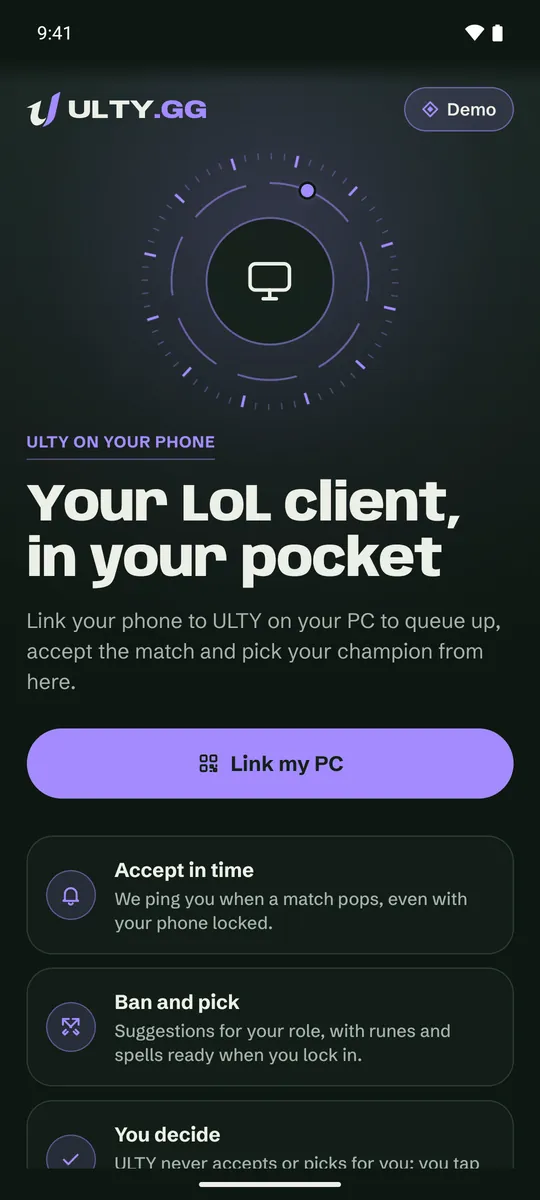
Pair your phone with the desktop app and stop watching the queue: queue up, accept matches and pick your champion from the sofa. You make each action with a tap; the PC app carries it out in the client.
Coming soon to iOS and AndroidThe mobile app is in closed testing. When it reaches the stores, you’ll see it here.
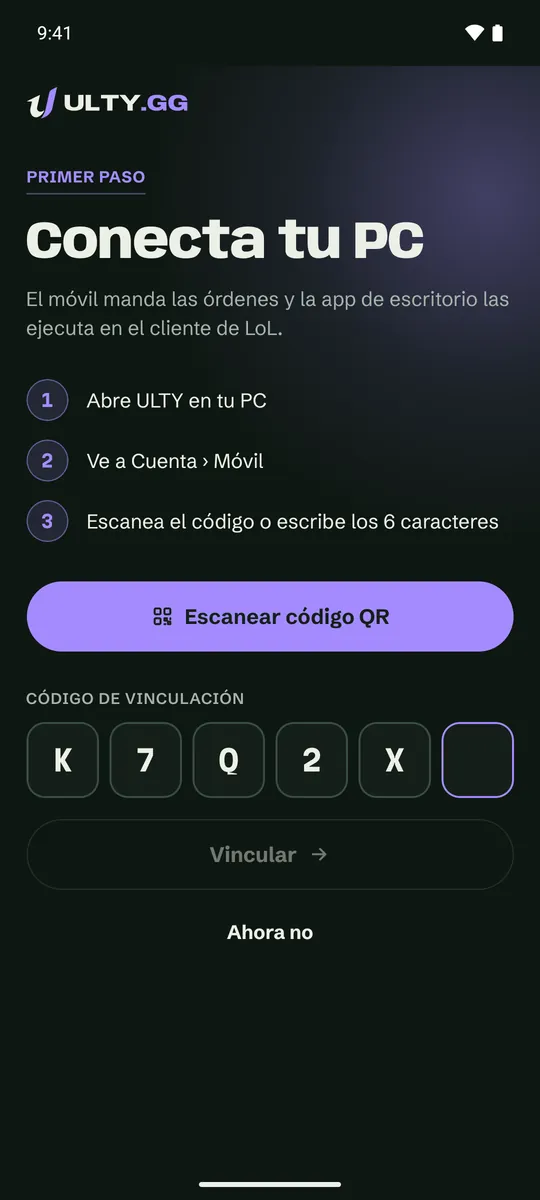
Pair your phone in three steps
Your phone does not talk to the LoL client: it sends commands to the desktop app, which carries them out. That’s why you pair it with your PC once.
- 1
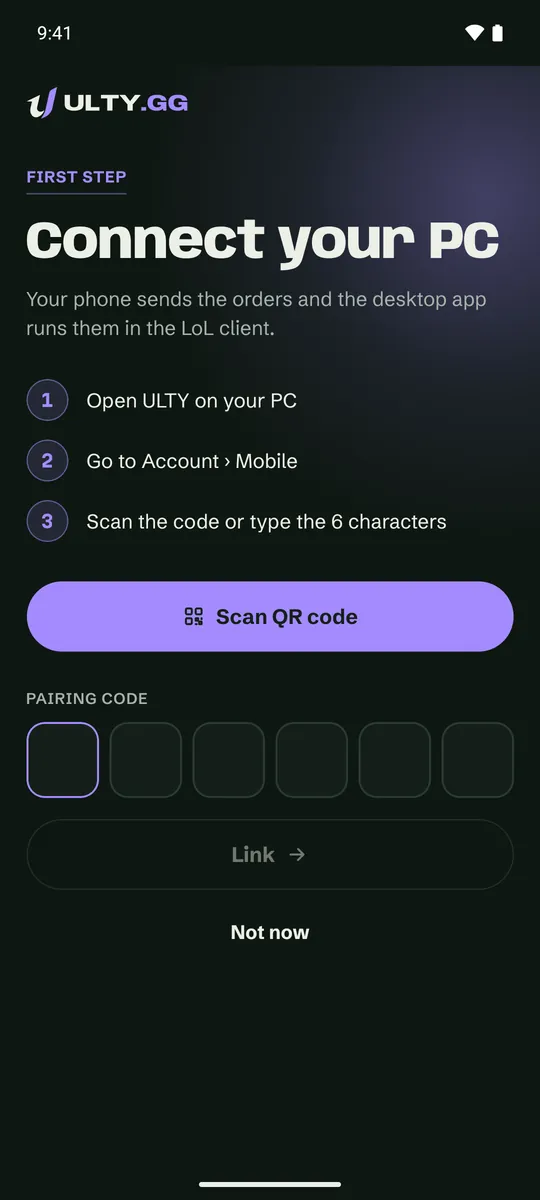
Open ULTY.GG on your PC and go to Account › Mobile › “Pair a phone”. A QR code and a six-letter code appear, both valid for five minutes.
- 2
On your phone, tap “Link my PC” and scan the QR code or enter the code.
- 3
You’re ready: your phone shows the status of your PC and client, and you can queue up.
Play
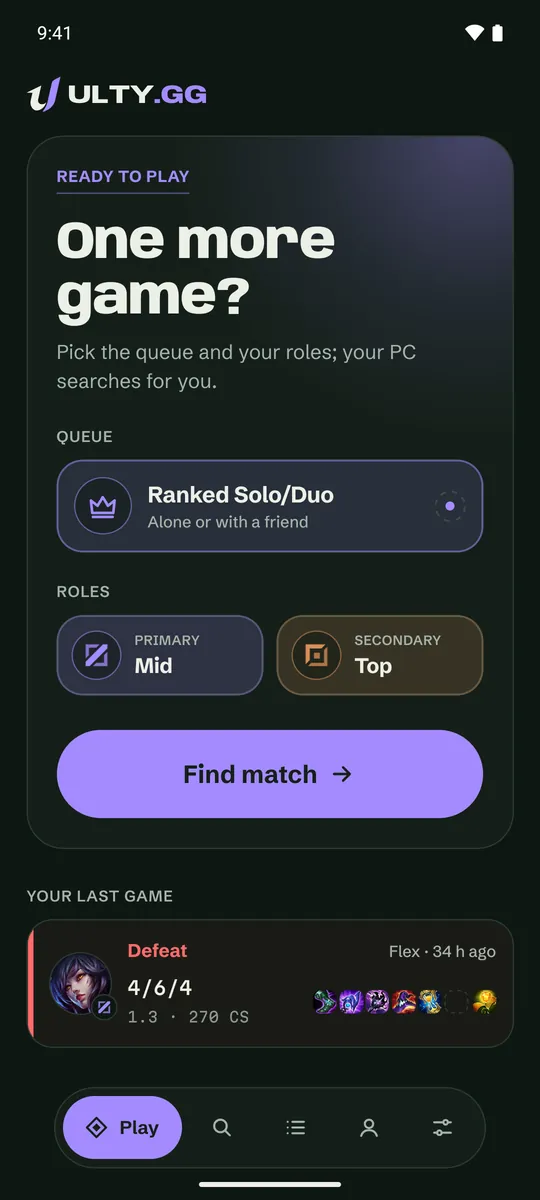
Queue up from your phone
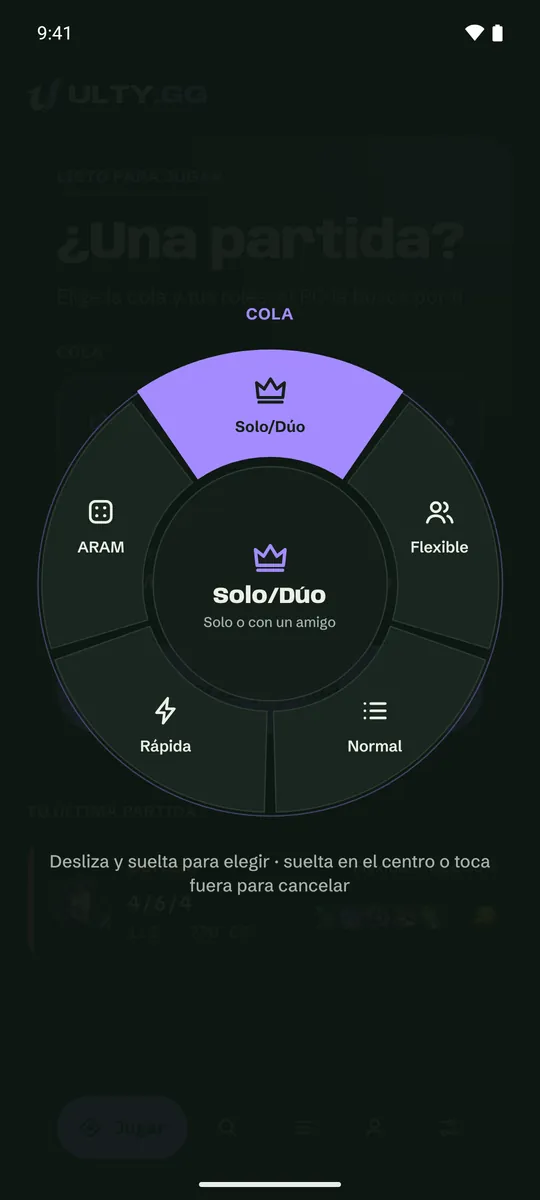
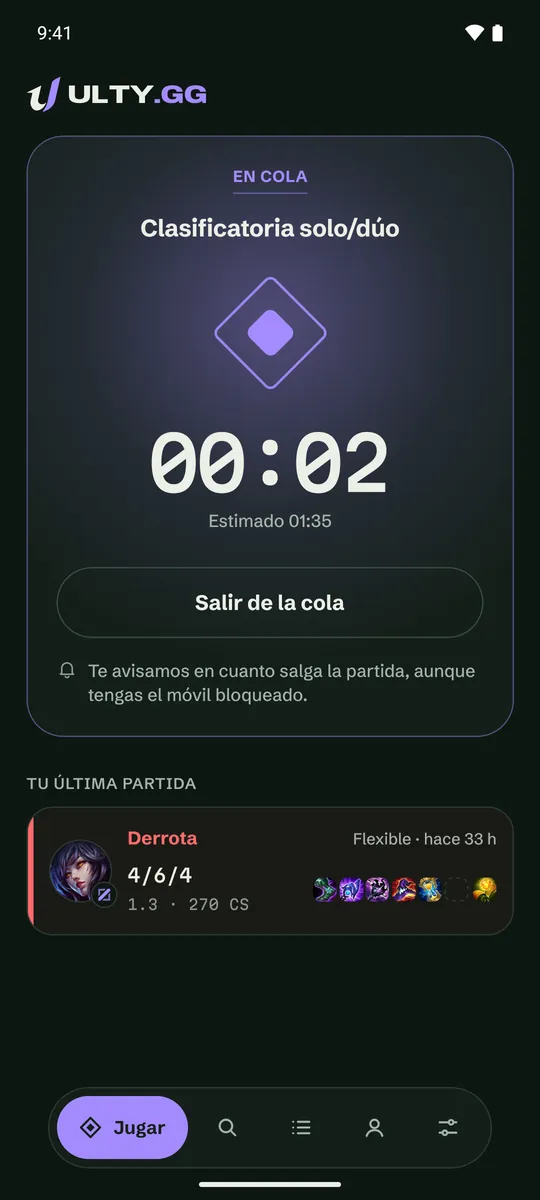
Choose your queue and role using two wheels, then tap “Find match”. While you wait, you can see your time in queue and the estimate, and leave the queue whenever you like.
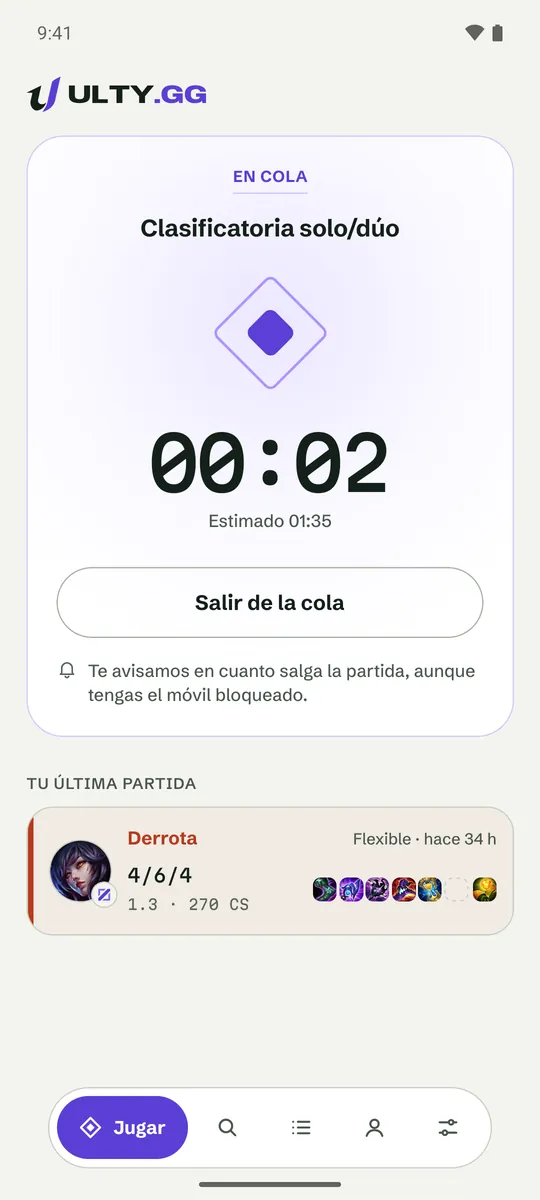
Match found
Accept it even when you’re away
When a match is found, your phone shows the countdown and Accept and Decline buttons, just like the client. Whatever you tap reaches your PC instantly.
Champion select
Ban, pick and lock in from your phone
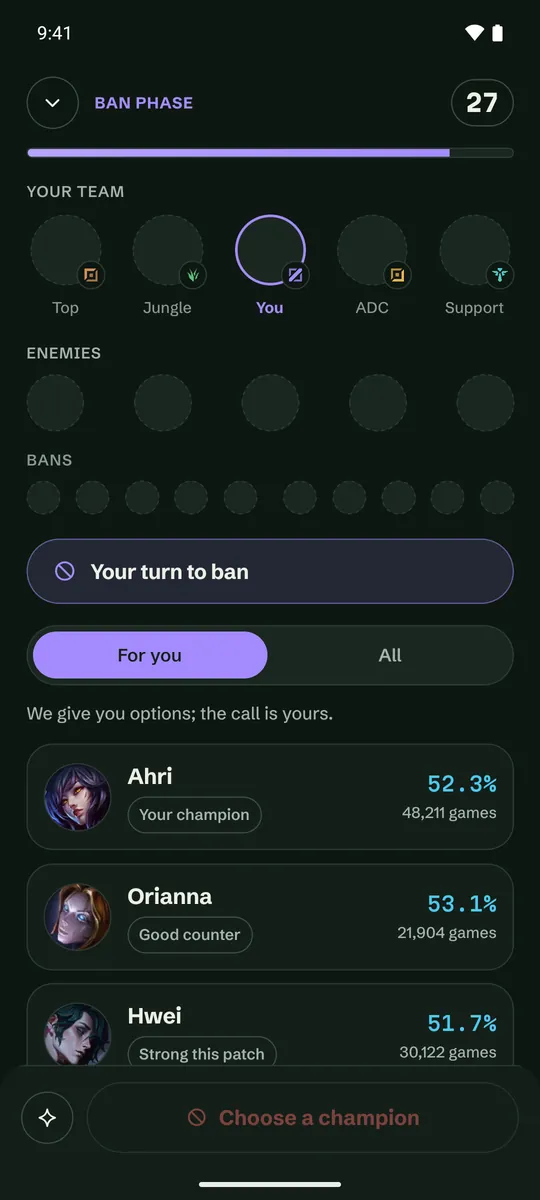
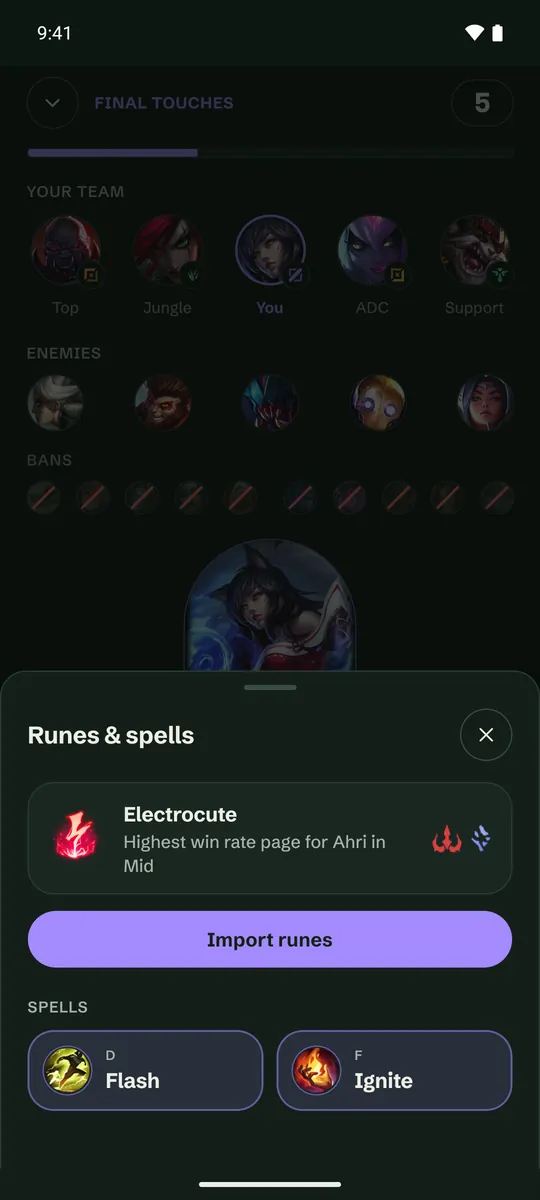
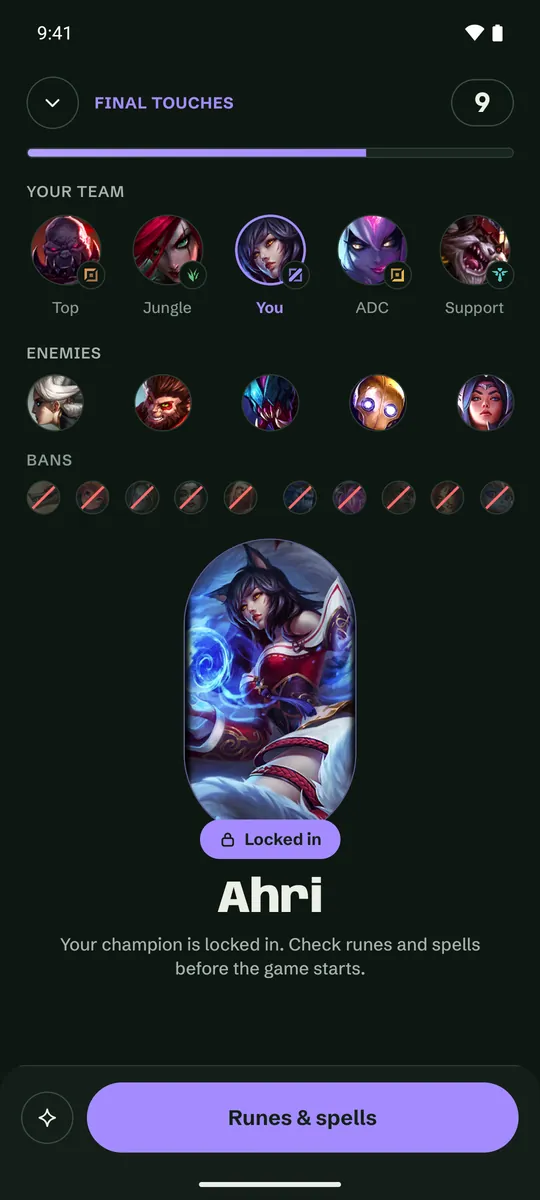
See your team, opponents and bans. When it’s your turn, your phone suggests champions with their win rates (yours or everyone’s), and you pick and lock in. Then, in “Runes and spells”, import the rune page with the highest win rate and change your summoner spells.
- Suggestions for your role, featuring your champion and strong picks for the patch
- A timer bar for each phase, just like in the client
- We give you options; you make the call
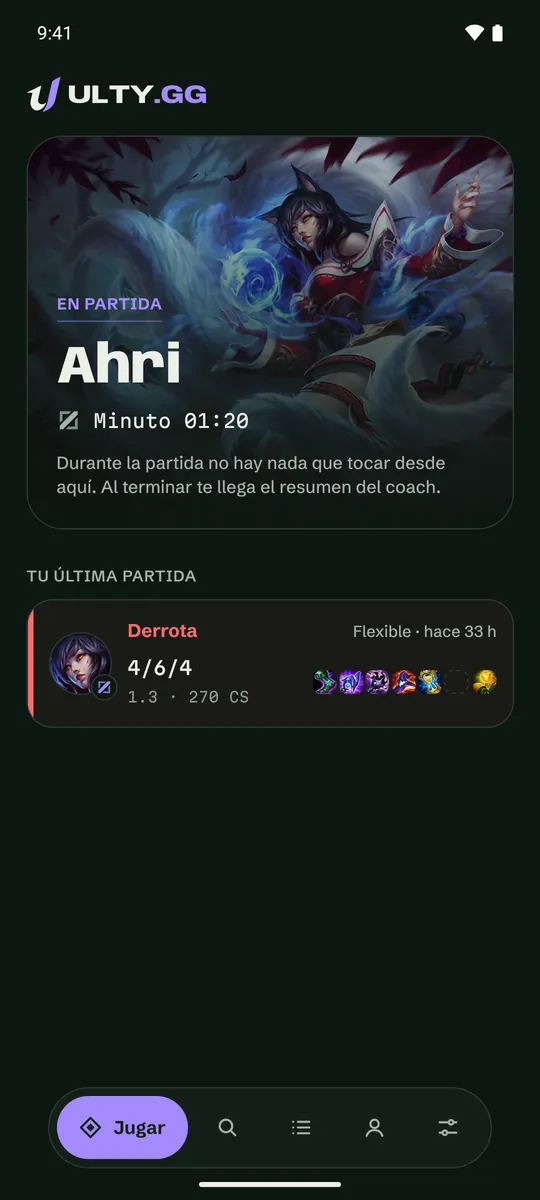
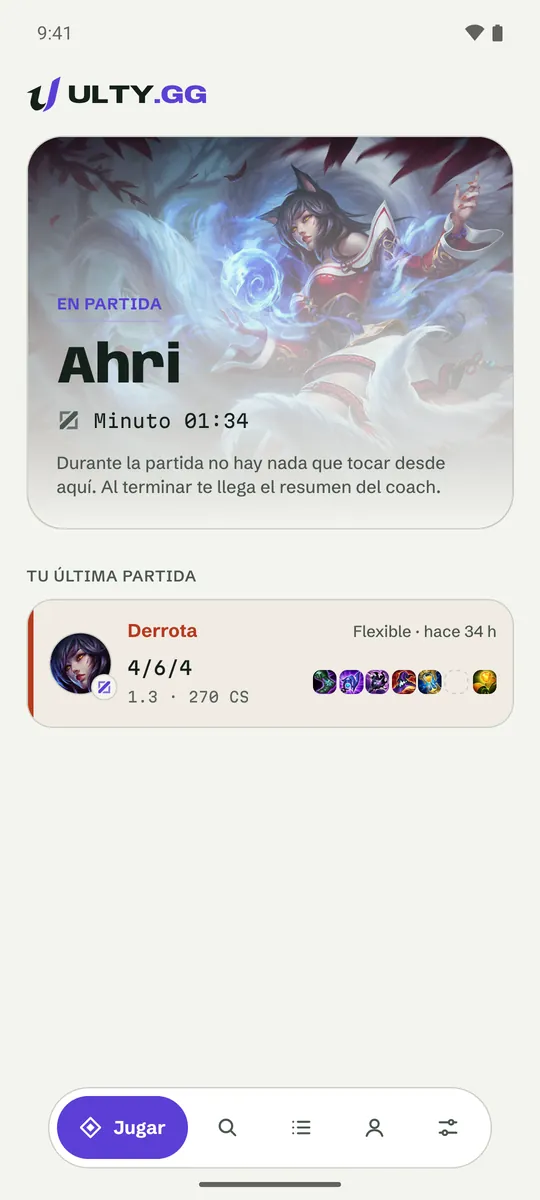
In-game
See how far the game has progressed
During the match, your phone shows your champion and the in-game time, with nothing to tap. After the game, the coach summary arrives in the desktop app.
Patches
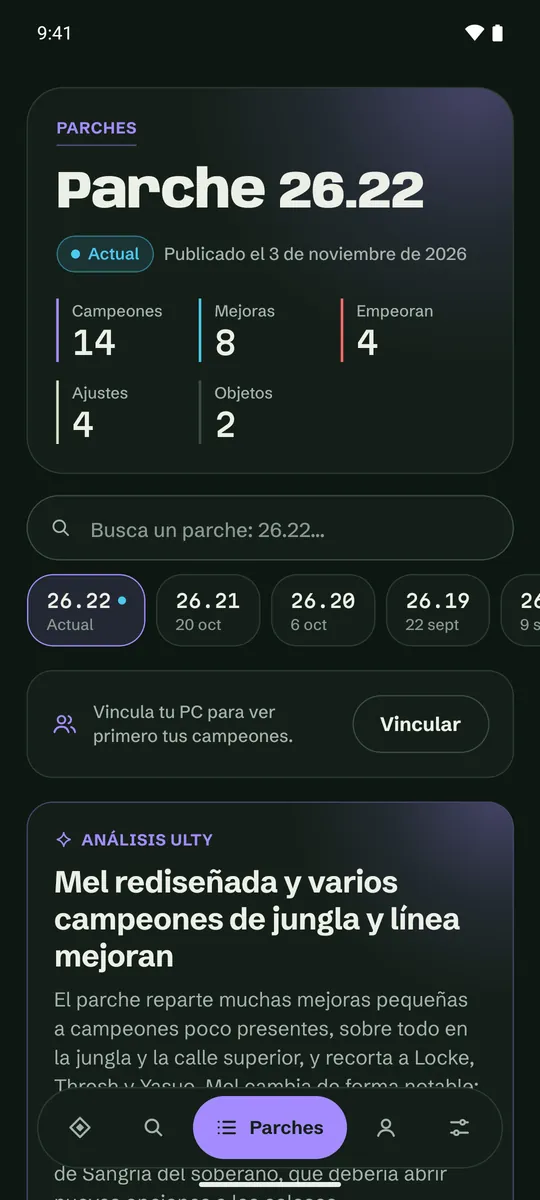
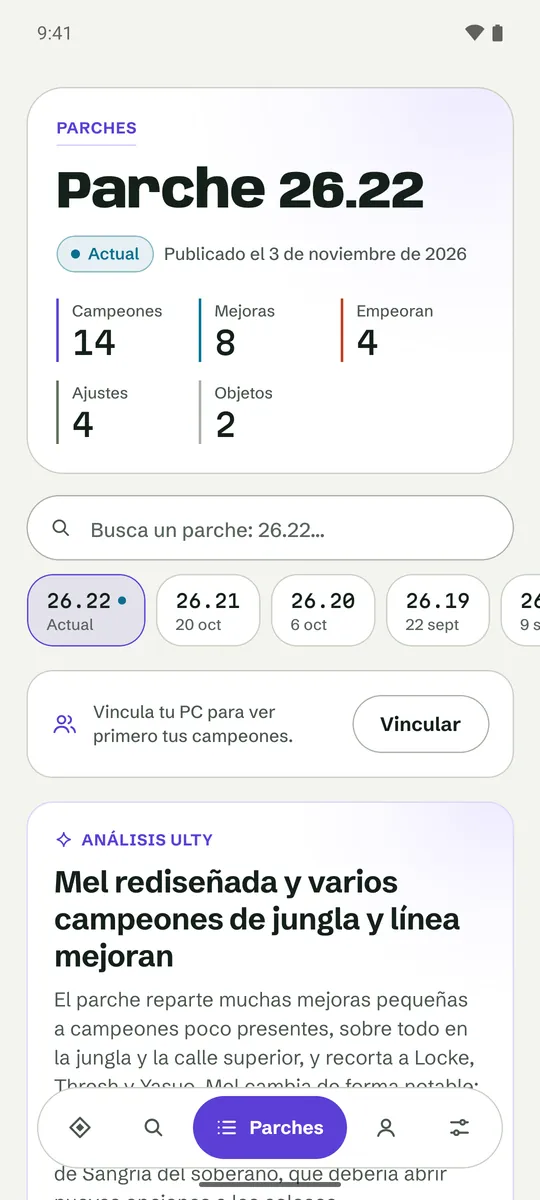
The patch, summarised on your phone
The latest patch with its numbers and ULTY.GG’s analysis: what changes and who it affects.
Settings
Your PC, language and theme
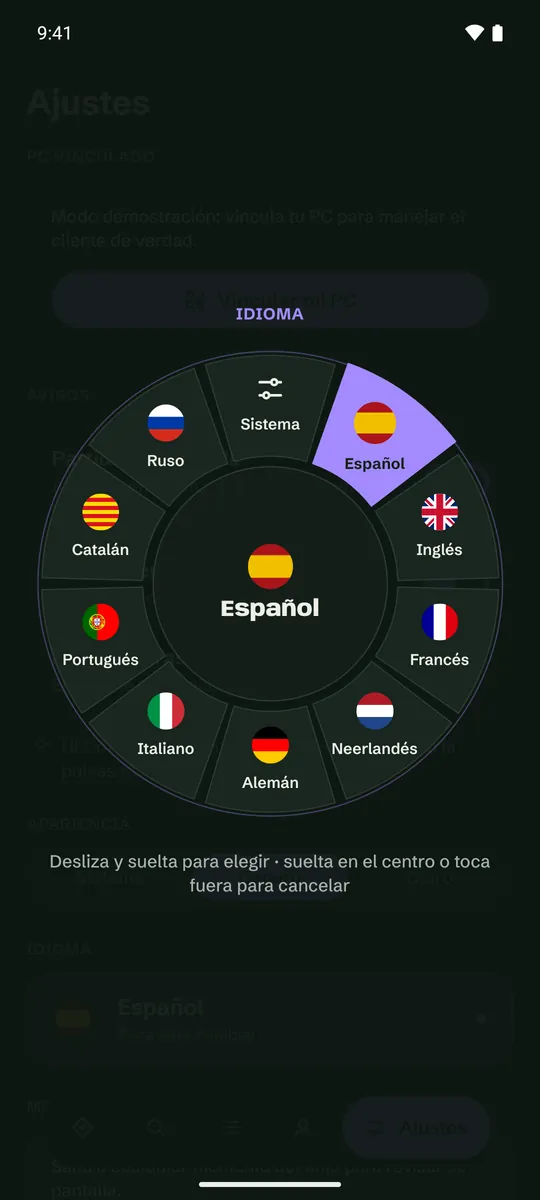
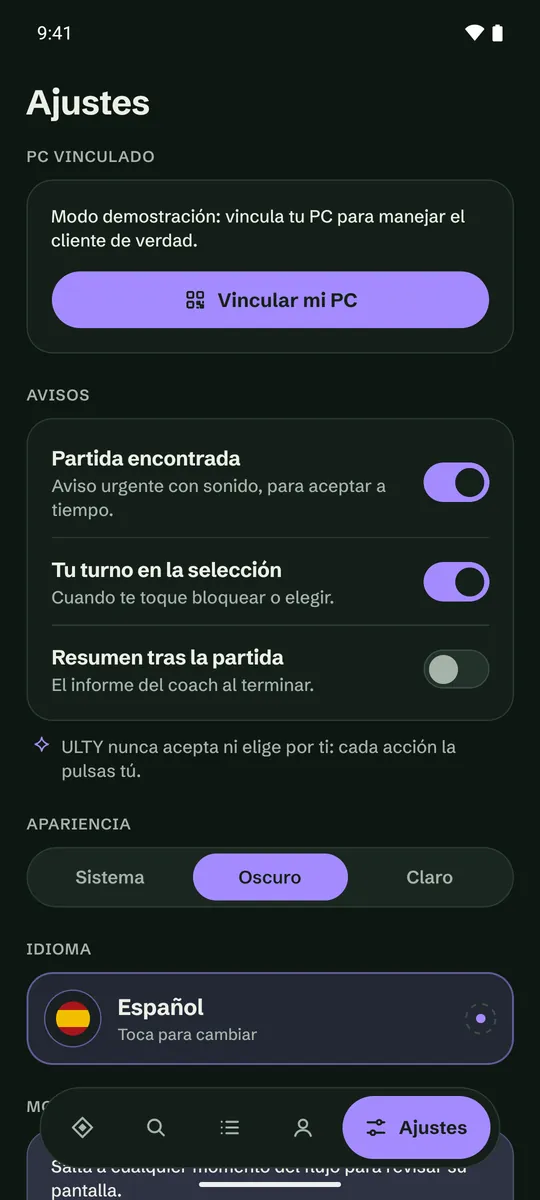
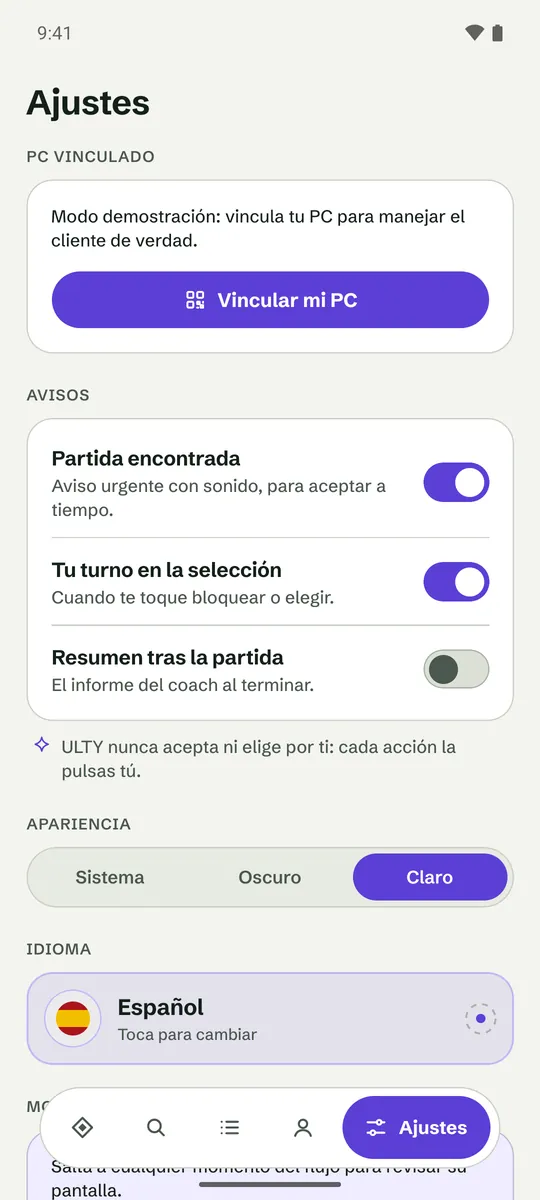
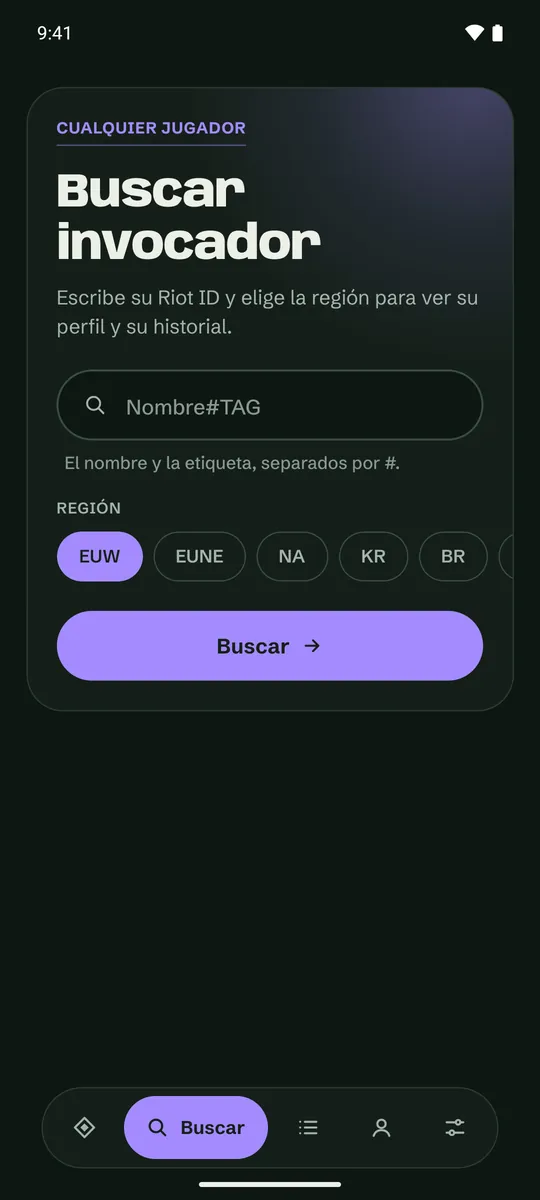
In settings, see your paired PC and choose your alerts, light or dark theme and language (the same nine as the website). You can also search for summoners.
Alerts
See what’s missing
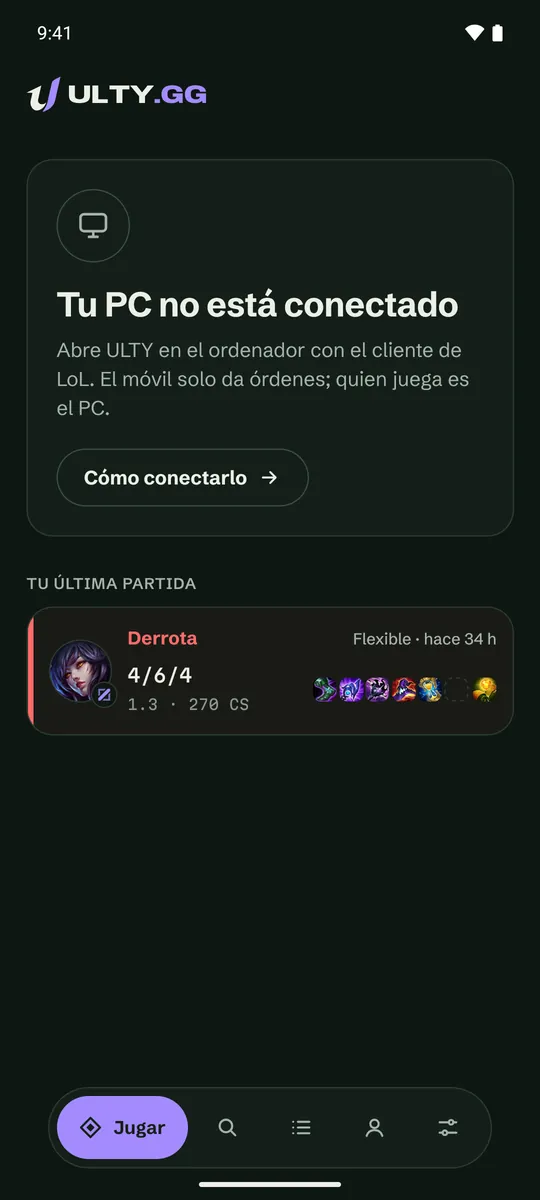
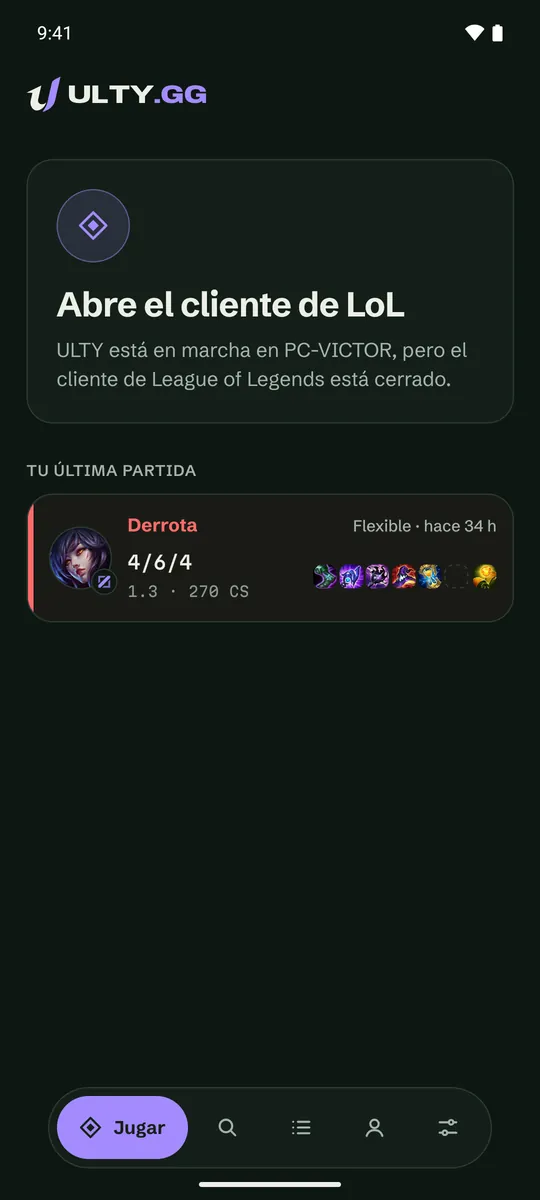
If your PC is off, the desktop app is not running or the LoL client is closed, your phone tells you instead of leaving you waiting.